> ## Documentation Index
> Fetch the complete documentation index at: https://docs.serviceplan-agents.com/llms.txt
> Use this file to discover all available pages before exploring further.
# Scheduled Tasks
> A task that repeats on its own — daily, weekly, or on a custom schedule.
Some work isn't a one-off — you want the same kind of task to run again and again, on its own, without you having to remember to ask for it every time.
## Why this matters
Things like "check our brand mentions every Monday" or "send me a daily competitor briefing at 7am" are exactly the kind of request that's easy to forget to re-send, and tedious to ask for by hand every single time. A scheduled task sets the rhythm once and then just runs.
## How it actually works
There are two equally real ways to set one up:
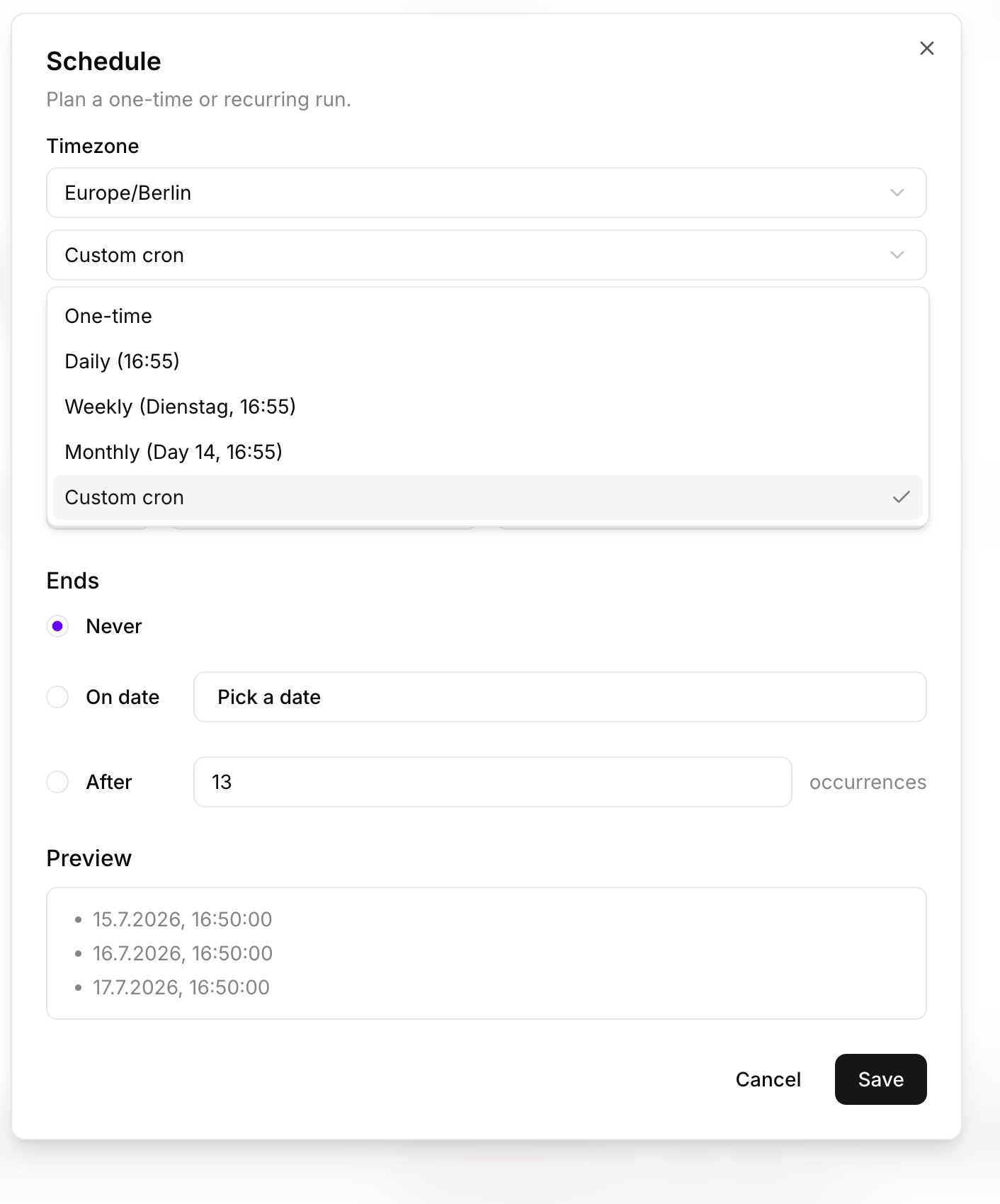
When creating a new task, click the small calendar icon next to **Create Task**. A Schedule dialog opens where you pick a timezone, a recurrence (One-time, Daily, Weekly, Monthly, or a fully custom schedule for advanced cases), and when it should stop — never, on a specific date, or after a set number of runs. It shows you a live preview of the next few actual run dates before you save, so you can double-check it's right.
Describe the recurring task and when you want it, in plain language, over email, WhatsApp, or chat — your coworker sets up the same schedule on your behalf.
 ### What happens on each run
Every time the schedule fires, it creates a genuine new task — not a re-run of an old one — and that task lands directly in **Ready** on the board, so it's picked up right away rather than sitting around waiting. A recurring task shows its frequency right on the card — for example, a card might show **"Daily (7:00)"** alongside a live countdown like **"Due in 15 hours"** — so you always know when the next run is coming.
### Managing an existing schedule
Skips future runs without deleting the schedule — pick it back up whenever you want.
Starts firing again on the original cadence.
Update the timing, the instructions, or even which workspace it bills to.
Trigger an extra run immediately, without touching the regular schedule.
Stops it permanently.
All five work the same two ways as setting one up — directly in Sokosumi, or by just asking your coworker.
## A useful detail
You can also set the [plan checkpoint](/en/tasks/plan-checkpoint) or a [draft review](/en/tasks/draft-review) to apply automatically to every future run of a recurring task, not just a one-off request — handy for something like a weekly report you always want to glance at before it goes out.
## Limits
A scheduled task is still a real task each time it runs — it goes through the same process, costs credits the same way, and can still need your input mid-run. Scheduling doesn't skip any of that; it just removes the need to ask each time.
## How this connects
See [Tasks](/en/tasks/overview) for the full picture of what a task goes through once it's created, and [Task Chaining](/en/tasks/task-chaining) if what you actually need is one task to kick off another rather than the same task repeating on a timer.
Not sure whether to schedule something or just ask for it once and see? Start with a single run — you can always turn it into a schedule once you know it's useful.
### What happens on each run
Every time the schedule fires, it creates a genuine new task — not a re-run of an old one — and that task lands directly in **Ready** on the board, so it's picked up right away rather than sitting around waiting. A recurring task shows its frequency right on the card — for example, a card might show **"Daily (7:00)"** alongside a live countdown like **"Due in 15 hours"** — so you always know when the next run is coming.
### Managing an existing schedule
Skips future runs without deleting the schedule — pick it back up whenever you want.
Starts firing again on the original cadence.
Update the timing, the instructions, or even which workspace it bills to.
Trigger an extra run immediately, without touching the regular schedule.
Stops it permanently.
All five work the same two ways as setting one up — directly in Sokosumi, or by just asking your coworker.
## A useful detail
You can also set the [plan checkpoint](/en/tasks/plan-checkpoint) or a [draft review](/en/tasks/draft-review) to apply automatically to every future run of a recurring task, not just a one-off request — handy for something like a weekly report you always want to glance at before it goes out.
## Limits
A scheduled task is still a real task each time it runs — it goes through the same process, costs credits the same way, and can still need your input mid-run. Scheduling doesn't skip any of that; it just removes the need to ask each time.
## How this connects
See [Tasks](/en/tasks/overview) for the full picture of what a task goes through once it's created, and [Task Chaining](/en/tasks/task-chaining) if what you actually need is one task to kick off another rather than the same task repeating on a timer.
Not sure whether to schedule something or just ask for it once and see? Start with a single run — you can always turn it into a schedule once you know it's useful.